
Cycle Atlanta Instructions
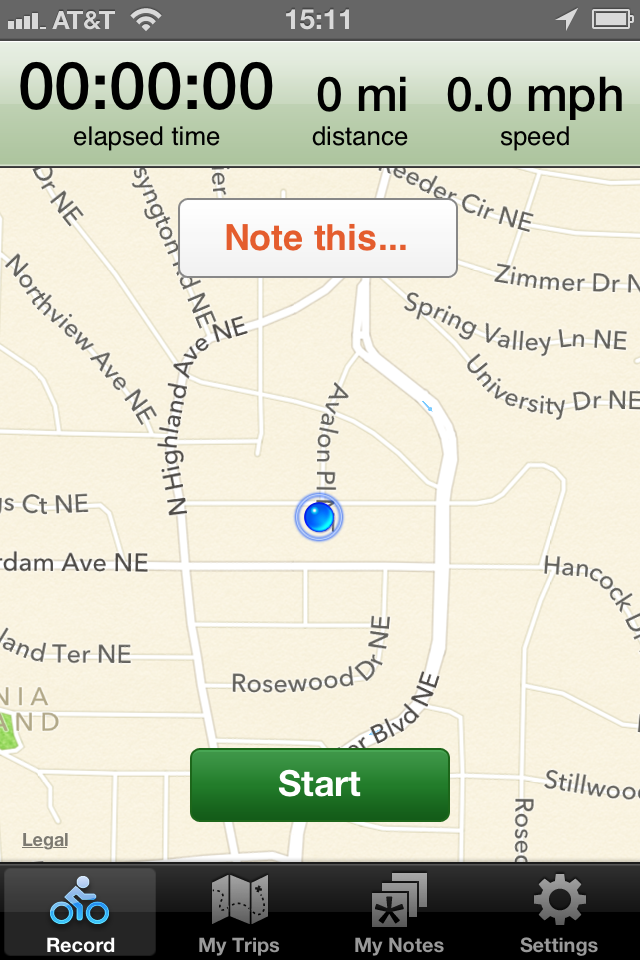
Upon launching the app, you'll find yourself on the "Record" screen.
Confirm the iPhone has a good fix on your location by checking the map before tapping Start. (GPS conditions sometimes prevent accurate location. If this is the case, cycle a short distance and check again.)
When you're ready to start recording your ride, tap "Start."
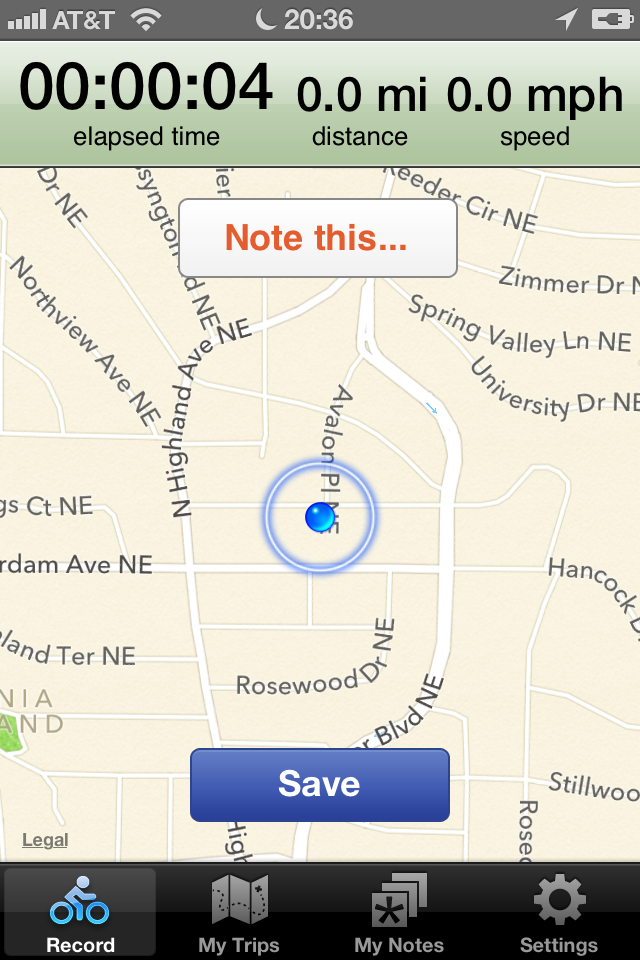
1. Recording a ride
When your ride is over, tap "Save." Confirm that your trip is done by tapping "Save" in the next pop-up. If you don't want to save the trip and upload the data - for whatever reason - simply choose "Discard." If you tap Save by accident and want to continue recording your current trip, choose "Continue".
If you have switched to another app while recording your ride, you can get back to Cycle Atlanta by selecting it from your Home Screen or from the App Switcher. If your battery goes below a 20% charge, Cycle Atlanta will automatically stop recording and shut down.
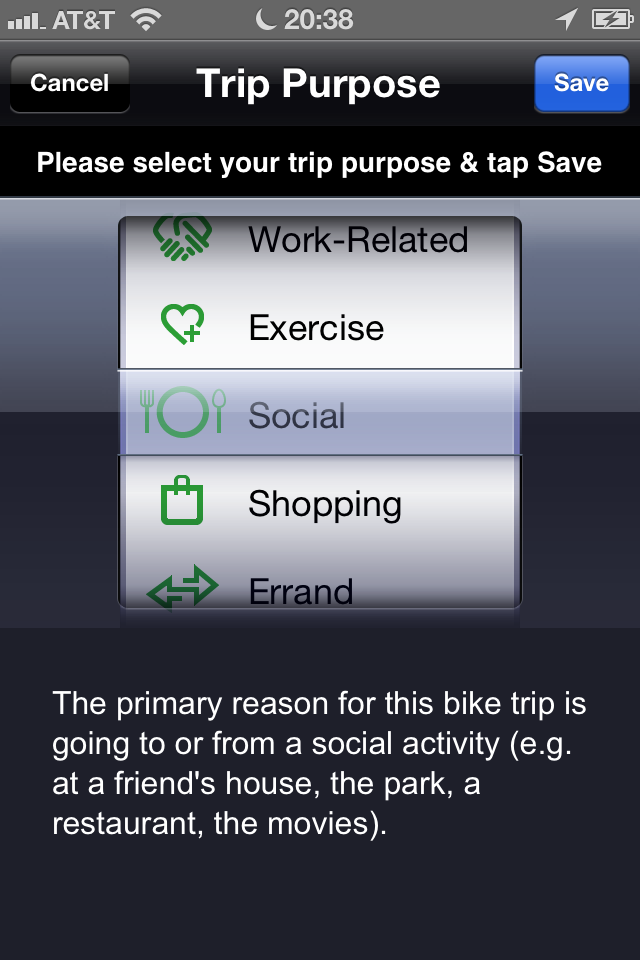
2. Specifying the trip purpose
Select a purpose on the "Trip Purpose" screen and tap "Save." We're interested in the MAIN purpose for each trip you make. If you're unsure how to categorize a trip, select "Other" from the Trip Purpose chooser. You can always include a comment before transmitting.
Cycle Atlanta will prompt you to enter comments or notes on the ride, which you can skip if you have none. It will then upload your ride data, notifying you when done. If there's a problem connecting to the server, it will prompt you to retry at another time.
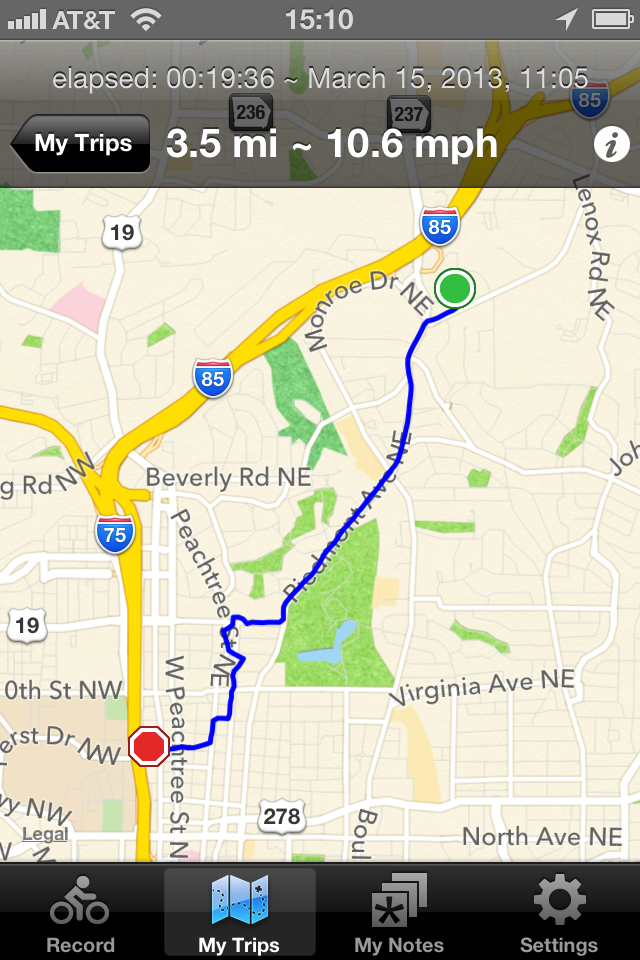
3. Maps
After your data is uploaded, Cycle Atlanta displays the map of your ride, showing the route, distance travelled, and average speed.
Tap "My Trips" on the tab-bar at the bottom of the screen to show a list of all your rides, including dates, times, mileage, CO2 saved, and calories burned. Tap on a trip to display its map. Share the map with others by taking a screenshot (press Sleep/wake and Home simultaneously), and sending it via email or downloading it to your computer. Hint: you can zoom in or out on the map. Tap "Edit" on the trip list to delete a trip.
4. Notes
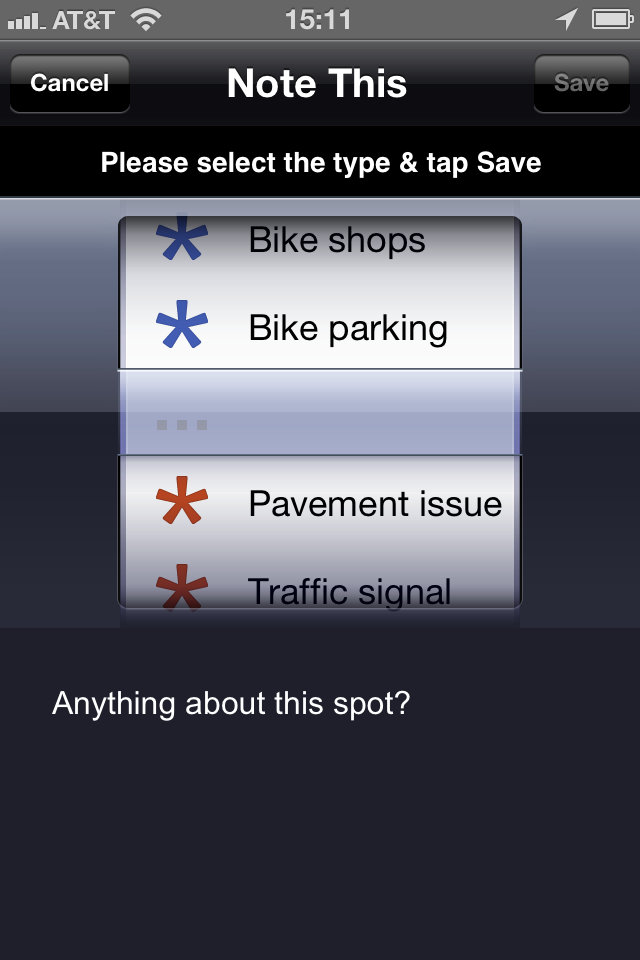
Do you know of an asset that will help other cyclists along your route - such as good bike parking, a water fountain, or a secret passage to cut through? Or have you noticed an issue you'd like to see addressed - such as a traffic signal that won't change or a problem with a bike lane? Tap on "Note this" and choose the issue or assets from the pop-up and then tap "Save".
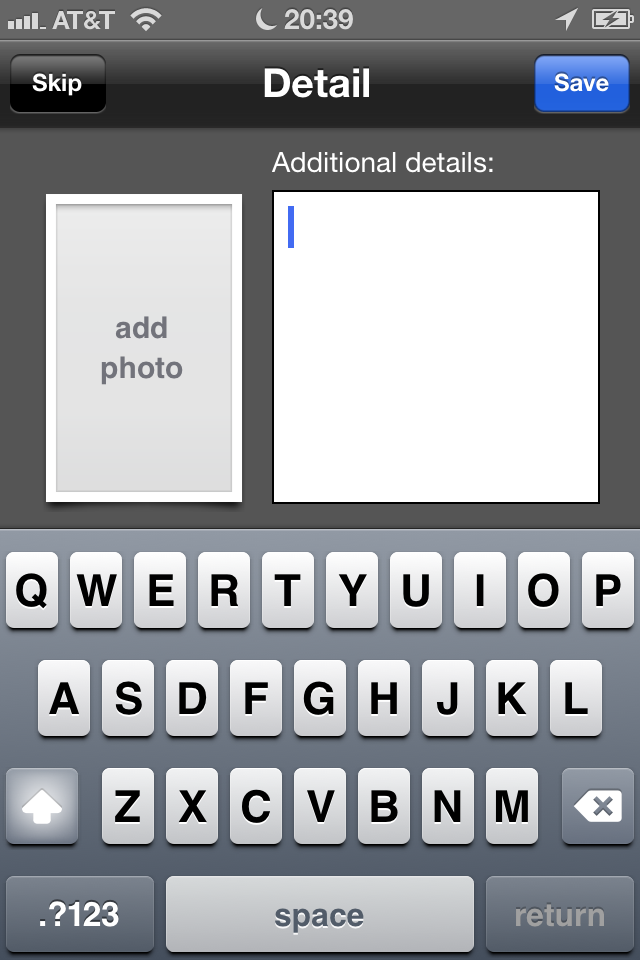
If none of the options fit your observation, choose "Note this asset" or "Note this issue" and you can fill in additional details on the next screen. Tap "Save" on the "Detail" screen to upload your issue or asset.
5. Note Details
You can add an optional photo or additional details for each issue and asset, or skip either one and just tap "Save" to upload your note.
Tap "Add photo" to open the camera and take a photo of the issue or asset. You can then preview your photo, and either tap "Use", or "Retake" if you want to take it again. Type any optional notes in the "Additional Details" box.
6. My Notes
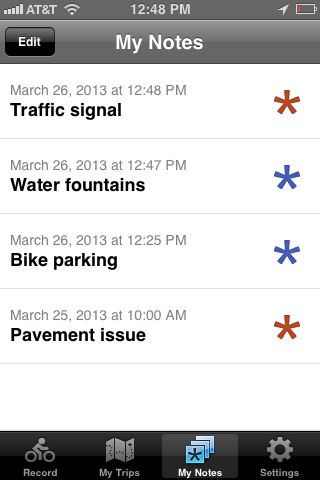
Tap "My Notes" on the tab-bar at the bottom of the screen to show a list of all your assets (in blue) and issues (in red), with dates and times.
Tap on a note to display its map. You can then tap the "i" for Info to see the picture and additional details, if any, that you entered for this note. Tap "Edit" on the top of the "My Notes" page to delete a note.
7. Settings
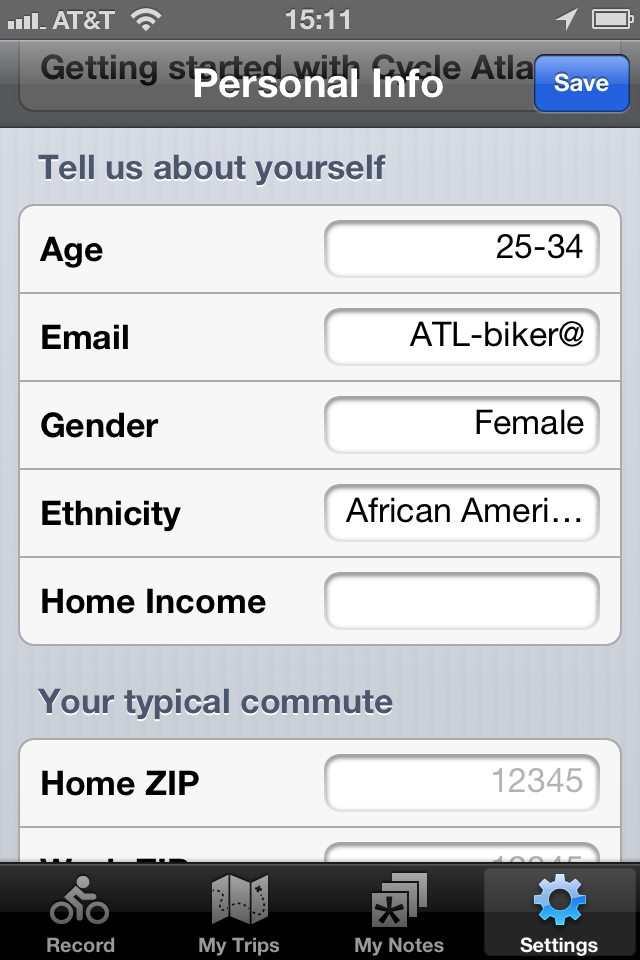
Entering personal info is completely optional and confidential, and, if you choose to participate, only has to be done once. It involves a few basic questions useful to our study. If you wish to give us your email address, the City of Atlanta or Georgia Tech may contact you directly about your experience using Cycle Atlanta or bicycling in the city. Tap "Save" when finished.
This Help menu is available from "Getting started with Cycle Atlanta".
|
Steps to make sure Cycle Atlanta works properly For your own safety, please do not listen to music with your headphones, talk on the phone, or look at the screen while cycling. Please pull over before reporting an asset or issue on your trip. Be sure to enable Location in your phone's Settings. (From the Home page, go to Settings, then Location Services.) |